A Payment Link is a shareable URL that points to a Shift4-hosted checkout page. When a customer opens the link and completes payment, Shift4 creates a Checkout Session — the object that records everything that happened during that checkout attempt.
- Payment Link — configuration object: amount, product name, lifecycle controls, collection fields. Managed via the API at
api.shift4.com. - Hosted checkout — the payment page at
pay.shift4.com/{id}that the customer sees. Rendered by Shift4; no code to embed or maintain. - Checkout Session — created when a customer opens the hosted checkout page. Carries the
staticFieldsandcustomFields(with the customer's answers, once entered) from the link, pluslastTransaction— the underlying sale response containing card brand, last four digits, captured amount, billing/shipping address (if collected), and success/failure status. One link can produce many sessions; each session corresponds to one checkout attempt (successful or not). - Transaction — the financial record of the payment attempt. Exposed on the session as
lastTransactiononce the customer submits payment.
The link itself does not contain payment data — it is the configuration template. All per-attempt data lives on the Checkout Session.
A payment link moves through the following statuses:
| Status | Meaning | Accepts payments? | Can be reactivated? |
|---|---|---|---|
active | Live and open for payment. | Yes | N/A |
scheduled (API only) | Created with a future activatesAt date; not yet accepting payments. | No — shows "The link will activate soon" to customers | N/A — activates automatically at activatesAt |
deactivated | Manually disabled via Customer Hub or API. | No | Yes |
expired | The current time has passed expiresAt. | No | No |
completed | The number of successful payments has reached restrictions.payments.limit. | No | No |
failed | The number of failed payment attempts has reached restrictions.errors.limit, if configured at creation. | No | No |
Transitions:
active→deactivated— manual action (POST /paymentlinks/updatewithpaymentLink.status: "deactivated", or via the Customer Hub).active→expired— automatic whenrestrictions.dates.expiresAtis reached.active→completed— automatic whenrestrictions.payments.countreachesrestrictions.payments.limit.active→failed— automatic whenrestrictions.errors.countreachesrestrictions.errors.limit.deactivated→active— manual action (POST /paymentlinks/updatewithpaymentLink.status: "active", or via the Customer Hub).scheduled→active— automatic atrestrictions.dates.activatesAt.
expired, completed, and failed are terminal. Once a link reaches one of these states it cannot be reopened — create a new link.
A payment link's type selects what the link does:
line_items(default) — a payment. The customer pays for the products defined inlineItems. This is the type behind every fixed-amount and customer-chosen amount link.card_verification— validates a card and saves it to the customer without charging it. See Card verification.
For line_items links, the amount shape of each line item then determines how much the customer pays — a fixed amount, or an amount the customer chooses. Fixed-amount links are available from both the Customer Hub and the API; customer-chosen amount and card-verification links are API only. In all cases, the amount field in each line item is expressed in major currency units — 10 equals $10.00.
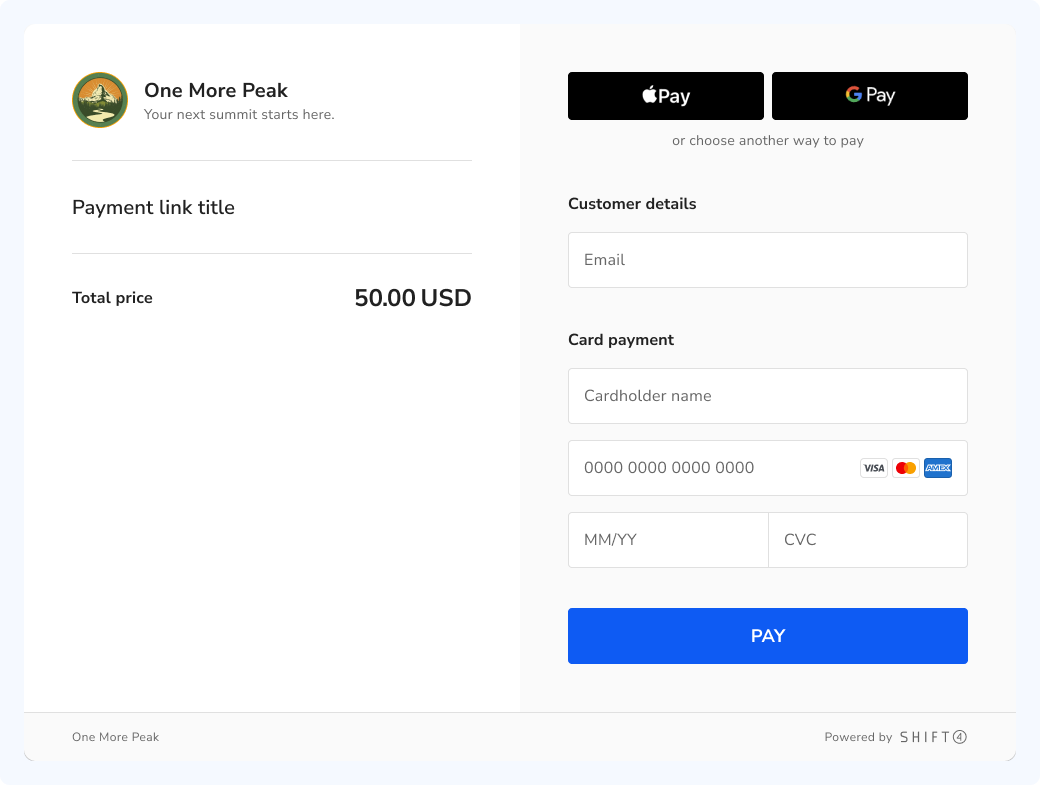
A fixed-amount link charges every customer the same preset amount. The merchant defines the amount and currency at creation, and the customer has no input over what they pay. This is the most common link type and covers the vast majority of use cases: invoices, service deposits, event tickets, and product sales.
{
  "currencyCode": "USD",
  "amount": {
    "total": 10
  }
}
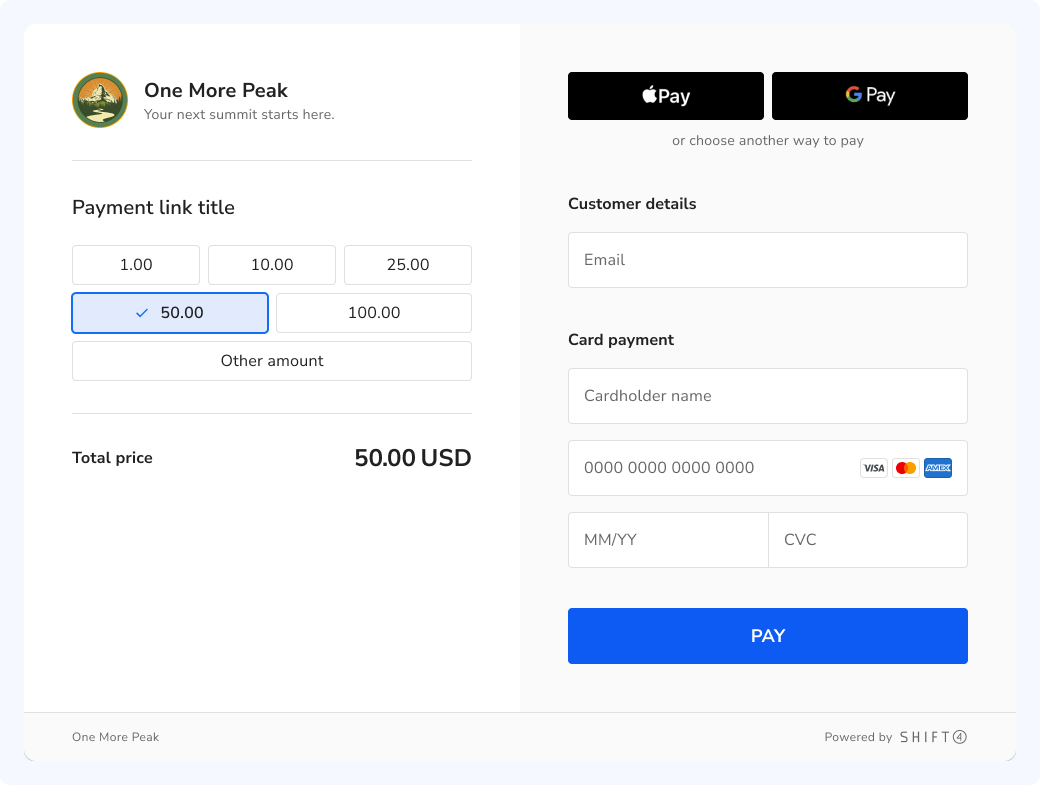
A preset-amounts link presents the customer with a fixed set of amounts to choose from. You define the options at creation; the customer selects one before proceeding to payment. This format works well when you want to guide the customer towards specific amounts — for example pay-what-you-want tiers, suggested tips, or a fundraiser offering $5, $10, and $25 options.
{
  "currencyCode": "USD",
  "amount": {
    "options": [5, 10, 25]
  }
}
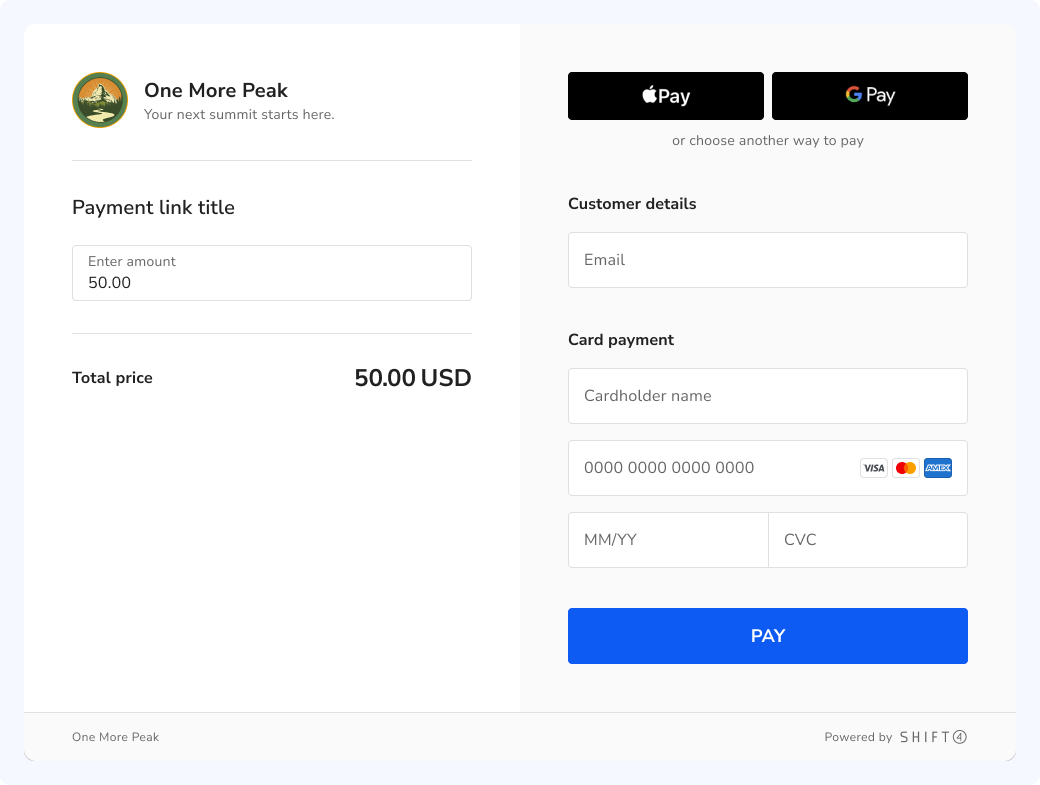
A custom-amount link lets the customer enter any amount between a configured minimum and maximum. This format suits cases where amounts of any size are welcome and constraining the customer to specific options would feel too prescriptive — pay-what-you-want checkouts, tips, or open fundraisers. A customer-chosen amount link must contain exactly one line item.
{
  "currencyCode": "USD",
  "amount": {
    "custom": {
      "min": 1,
      "max": 1000
    }
  }
}
The two customer-chosen modes aren't mutually exclusive. Provide options and custom together in the same amount object to show the preset amounts alongside an "other amount" field — the customer can pick a suggested amount or enter their own within the configured range. Only total (the fixed-amount shape) is mutually exclusive with the customer-chosen shapes.
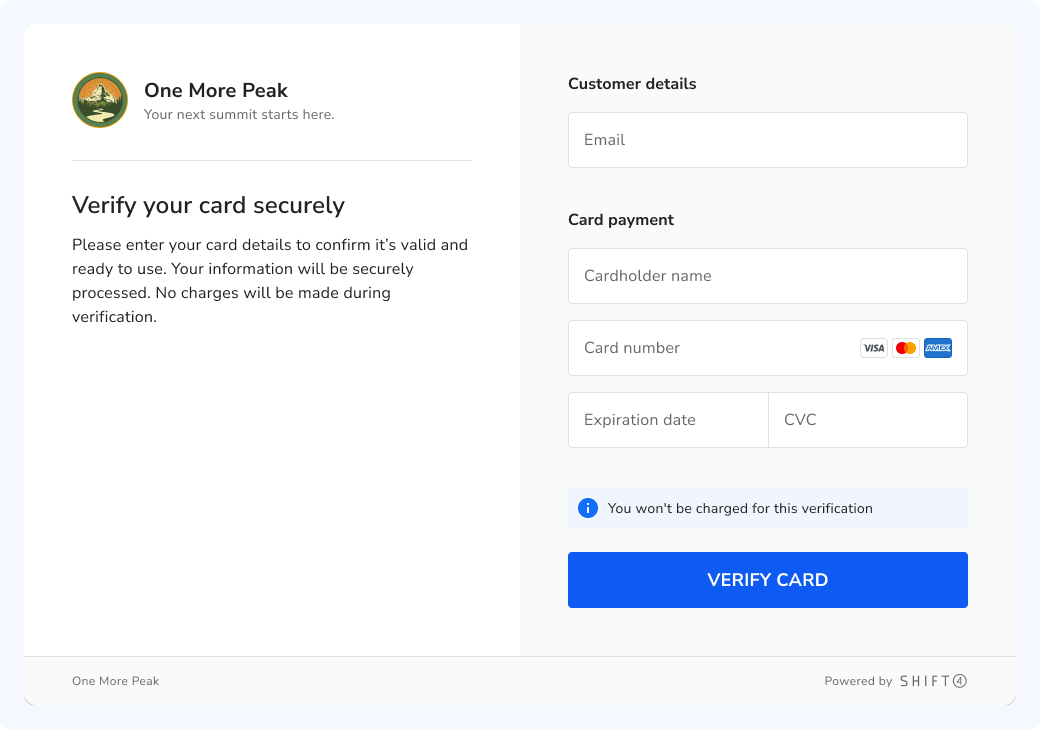
A card-verification link runs a $0 authorization to confirm a card is valid — and that there's a real person behind it — without charging anything. It's a security / legitimacy check: it succeeds only if the card is live and passes the issuer's checks. Set type to card_verification; the link takes no lineItems but requires a top-level currency and a customer (a new inline customer or an existing one by id).
The validated card is also saved to that customer, so the next time the same customer opens another payment link from the same merchant, the card appears as a one-tap option on the hosted checkout — a returning customer can pay without re-entering it. (Saving a card on its own doesn't require verification — a normal payment link can do that too; reach for card_verification when validating the card is the point and you don't want to charge.)
{
  "type": "card_verification",
  "currency": "USD"
}
| Control | API field | Available via | Effect |
|---|---|---|---|
| Schedule activation | restrictions.dates.activatesAt | API only | Link stays scheduled until that ISO 8601 timestamp. Customers see "The link will activate soon." |
| Set expiry | restrictions.dates.expiresAt | Customer Hub and API | Link automatically moves to expired at that ISO 8601 timestamp. |
| Limit successful payments | restrictions.payments.limit | Customer Hub and API | Link moves to completed once this many successful payments have been made. restrictions.payments.count tracks the running total (read-only). |
| Deactivate | POST /paymentlinks/update with paymentLink.status: "deactivated" / Customer Hub | Customer Hub and API | Immediately stops accepting payments. Reversible. |
activatesAt and expiresAt can be combined to define a precise active window — useful for time-limited promotions or scheduled fundraisers.
By default, the hosted checkout collects only the card details and email required for payment. Enable additional fields to collect more from the customer:
| Field | API field | Available via |
|---|---|---|
| Billing address | collectBillingAddress: true | Customer Hub and API |
| Company name | (Customer Hub toggle only) | Customer Hub only |
| Shipping address | collectShippingAddress: true | API only |
| Custom fields (arbitrary questions) | customFields array | API only |
| Static fields (read-only context for customer) | staticFields object (key/value map) | API only |
All collected data is stored on the Checkout Session object — not directly on the payment link. Every session captures customer email (and phone if provided) and payment details (card brand, last four digits, status); the optional fields from the table above are included when enabled.
Access the session through any of these:
- API —
GET /checkoutsessions/retrievewith the session ID in theCheckoutSessionIdheader (taken from thereturnUrlredirect'scheckout_session_idquery parameter or thecheckoutSession.idfield on the webhook payload). - Webhook — the full session object is included in the
checkout_session_completedevent payload (API only).
Three mechanisms exist for attaching data to a payment link. They serve different purposes:
| Field | Shown to customer | Customer can edit | Use for |
|---|---|---|---|
staticFields | Yes | No | Context the customer should see: order ID, event name, reference number |
customFields | Yes (as a form field) | Yes | Information you need from the customer: attendee name, T-shirt size |
metadata | No | No | Internal IDs for your own systems: ERP key, CRM record, campaign tag |
| Pattern | Configuration | Use case |
|---|---|---|
| Invoice payment | Fixed amount, billing address enabled, invoice number as a custom field (API only), email delivery | Track payment status in the Customer Hub for A/R collections |
| Deposits and reservations | Fixed amount, expiry date, customer contact info, confirmation email | Secure reservations with deadline enforcement |
| Tickets and admissions | Fixed amount per ticket, restrictions.payments.limit set to venue capacity, attendee info via custom fields (API only) | Event ticketing with automatic capacity limits |
| Trip and group payments | Fixed amount per participant, attendee details via custom fields (API only), expiry before the trip date (API only) | School groups, travel bookings, multi-person registrations |
| Customer support / call center | Variable amount, email delivery, real-time status tracking | Create payment links during support calls and send them instantly to the customer |
| Pay-what-you-want (API only) | Customer-chosen amount with preset amounts or a custom amount, optional custom fields for extra info | Fundraising, tips, and name-your-price checkouts |
When a customer completes checkout, Shift4 sends a checkout_session_completed event to your registered webhook endpoint — this is the authoritative signal for a captured payment. For the full list of events, retry behaviour, and payload format, see Monitor and reconcile.
Get started
Create your first payment link and confirm a payment — Customer Hub and API quickstart.
Create link
Set expiry dates, add line items, collect billing address and custom fields.
Monitor and reconcile
Track status, list charges, and receive webhooks for server-side confirmation.
Troubleshooting & FAQ
Answers to common questions about status, notifications, and reconciliation.